 To set a Room Condition:
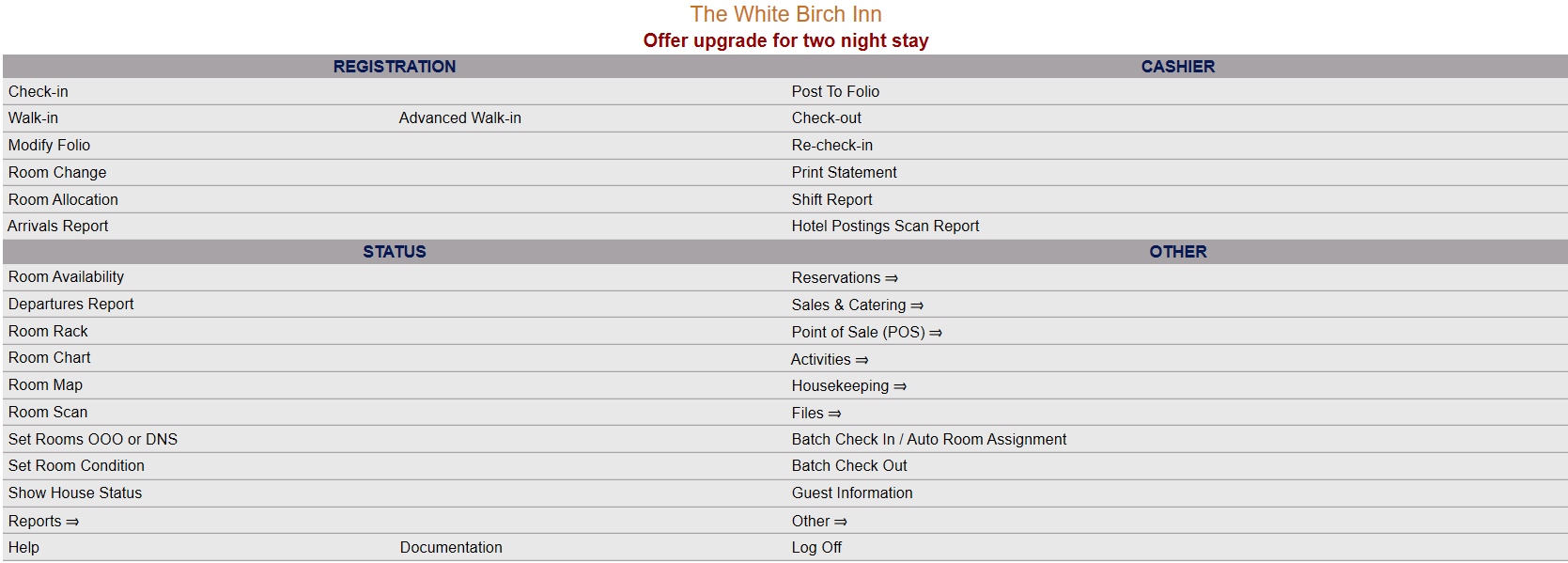
Click Set Room Condition from the Status section of the Full Menu.
Click the icon on the left for the Full menu.
 OR
OR 
This will display the Full menu in a tabular form, with four sections, Registration, Status, Cashier and Other.
 OR
OR 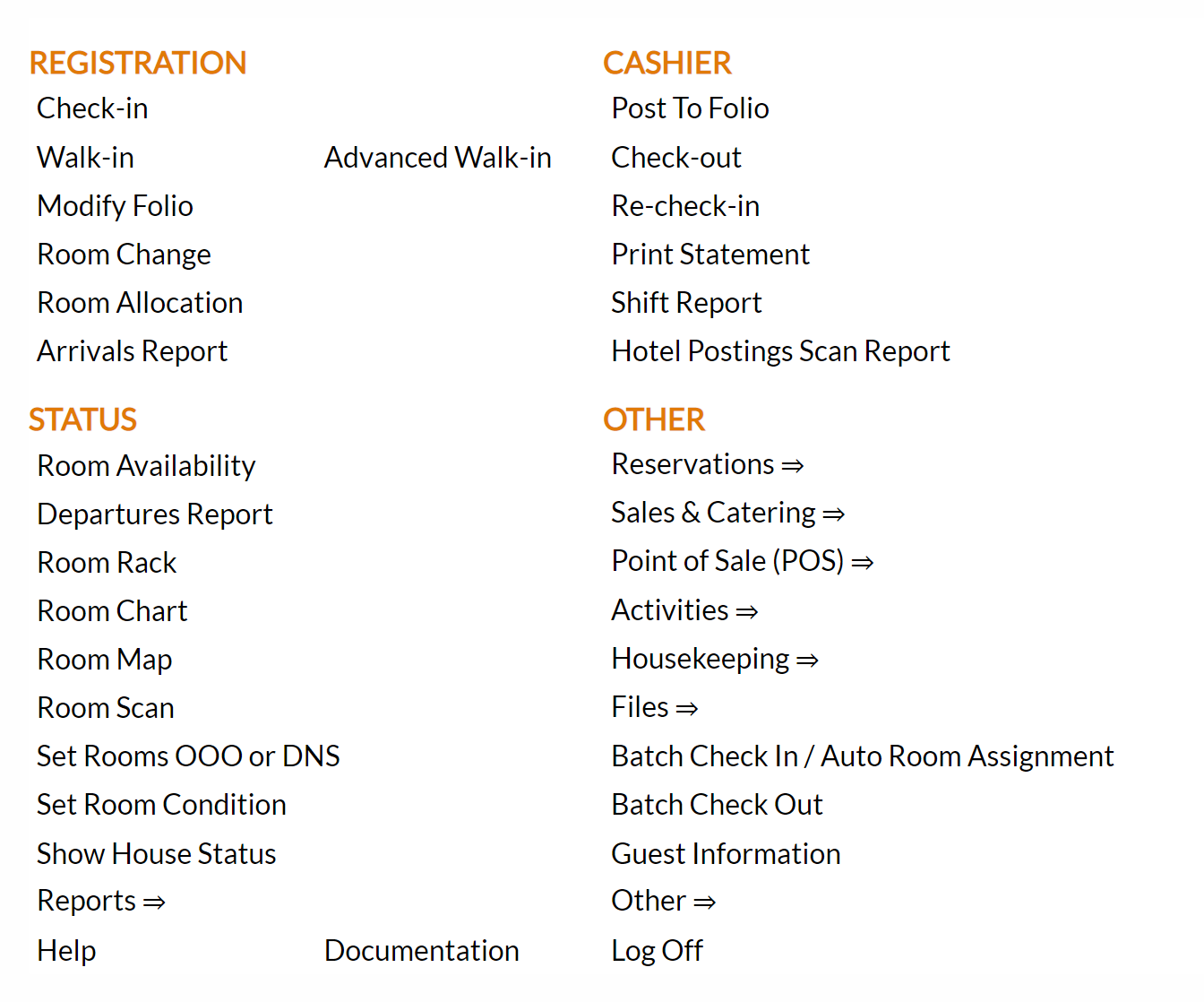
From the Status Section, select Set Room Condition.
 OR
OR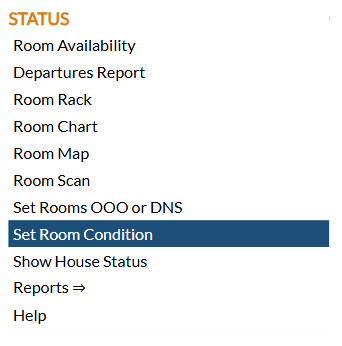
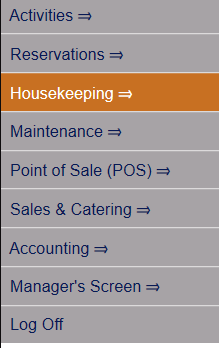
OR Select Set Room Condition from the Housekeeping Menu screen.
Click on Housekeeping => in the Quick Menu.
 OR
OR 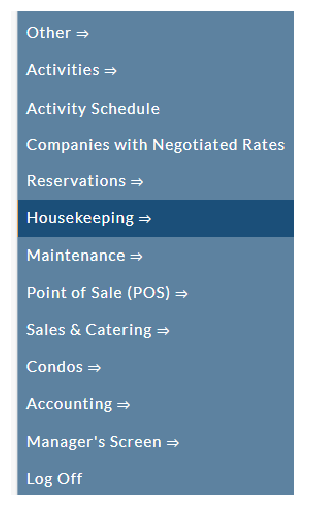
This will display the Housekeeping Menu screen.
 OR
OR
From the Housekeeping Menu 1 Section, select Set Room Condition.
 OR
OR 
When you select Set Room Condition this will open the Set Room Condition screen.
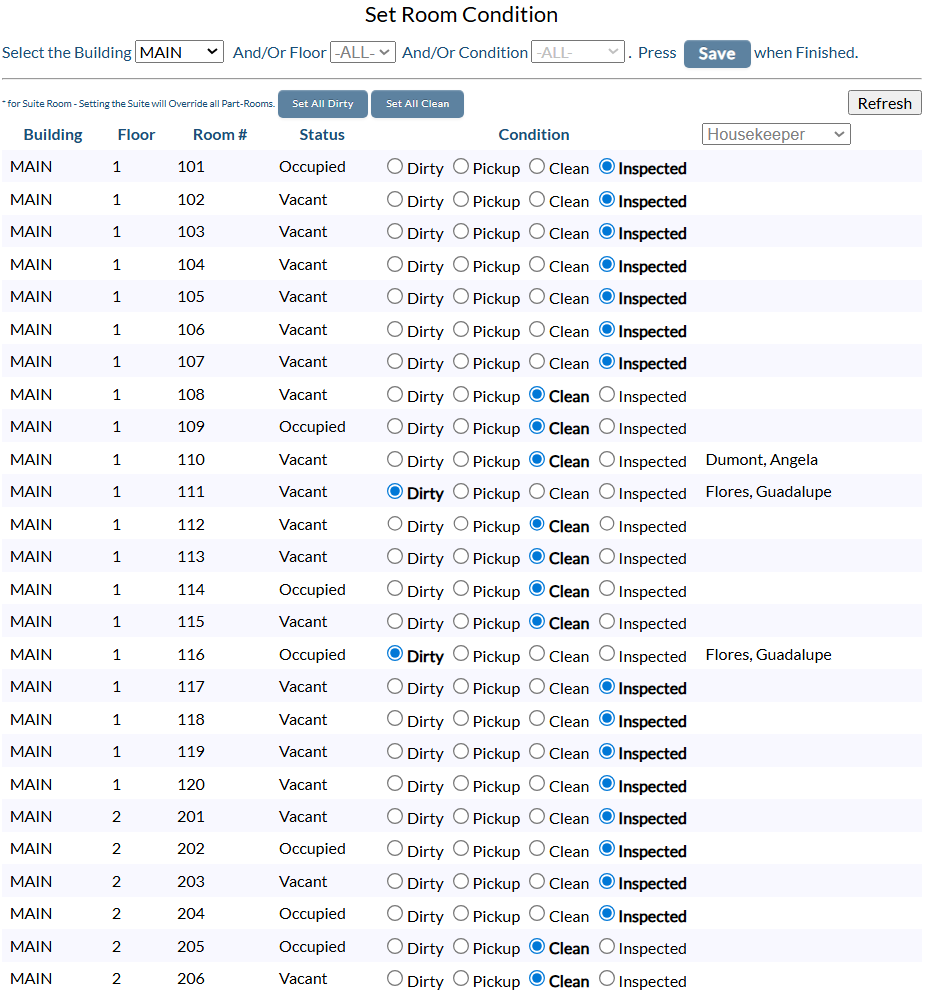
By default, the list will display the MAIN building rooms with ALL floors and Conditions shown. Any currently assigned housekeepers for the rooms displayed will also be shown (in the column named "Housekeepers" - last on the right). If no name is shown, no housekeeper is assigned. (Use the Housekeeping Room Assignments screen to assign rooms that require attention to your individual housekeepers).
Assigned rooms also display any DND notices and the presence of any housekeeper comments added via the Housekeeper Dashboard.
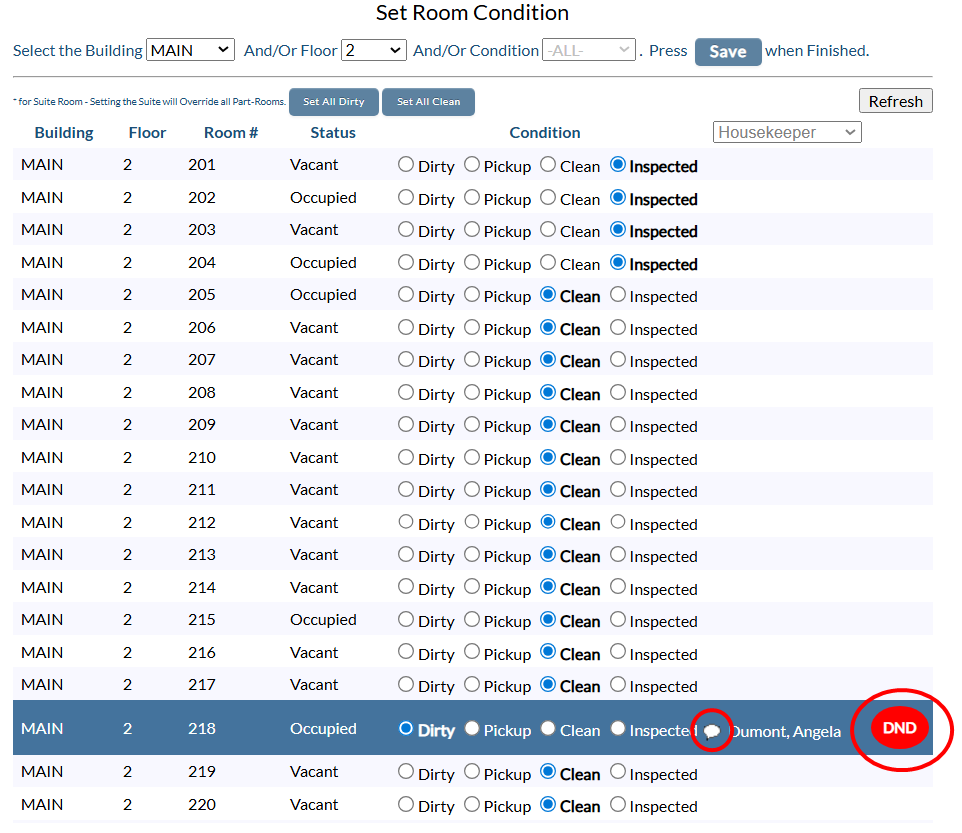
Hover the mouse over the comments speech bubble to read the housekeeper comment (appears as a screen tip on screen).
You may filter the list, by selecting the Building, the Floor and/or Condition (current status); and by Housekeeper, if desired:

Building: This is a drop-down menu of all buildings configured for your Property. Select one or -ALL-.
Floor: This is a drop-down menu of all floors your Property has rooms on. Select one or -ALL-.
Condition: This is a drop-down menu of all conditions your rooms may be. Select one or -ALL-.

Housekeeper: This is a drop-down menu of all housekeepers configured for your Property. You may select a specific housekeeper by name from the list shown to view only the rooms assigned to the selected housekeeper. By default, the list shows all rooms, regardless of which housekeeper (if any) has been assigned.
Once you are displaying the rooms you wish, with their current status, you can use the radial buttons located to the right of each room listed to change the status as needed. The current status is highlighted in bold for easier viewing.
If you make any changes to a room status be sure to click the button Save; otherwise the status will not be updated in Skyware Systems.
Note: You can also set ALL your rooms Dirty or Clean by clicking the button Set All Dirty or Set All Clean. If you do so, be sure to click the Save button to save this in Skyware; or, if wished, instead the Refresh button will return the rooms to the previously saved status.
Note: * for Suite Room - Setting the Suite will Override all Part-Rooms.

If your property is using Suite logic, you will need to update the status of the individual rooms that make up that Suite, not the Suite itself (it will have a "None" option already selected). Setting the Suite will Override all Part-Rooms.